

Advanced Feature #1: Repeating Values
First, let’s talk about Repeating Values — maybe you already use this feature in your Parsers.
A repeating value is a data field that appears multiple times in a document. This can be a:
- Name.
- Street name.
- City
- Etc.
This parsing rule allows you to extract single repeating text values from a document containing multiple data fields. It relies on anchor keywords to locate the repeating values and assumes that the anchor keyword is close to the text value.
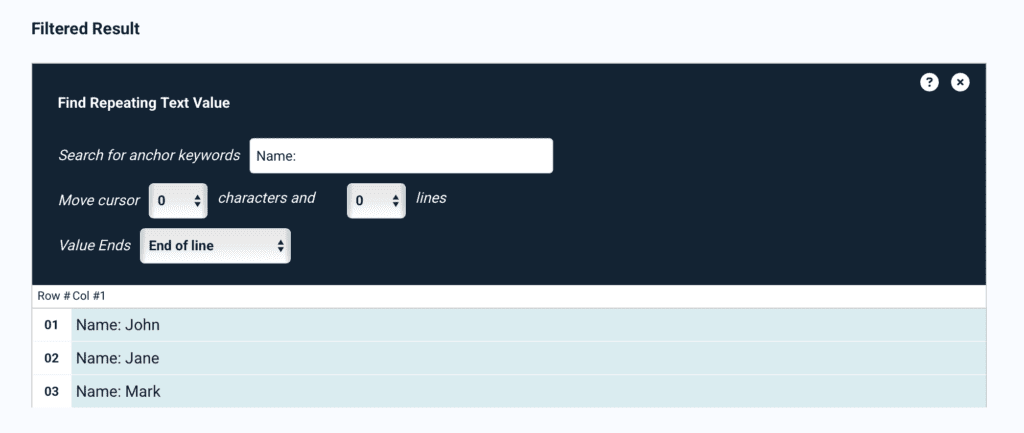
For example, let’s say we want to extract the names of multiple individuals from a document. By typing the anchor keyword, we can isolate the names from the rest of the document’s contents.
You can then customize this rule as needed by adding filters. Specifically, you can:
- Move the cursor by characters: Lets you define the position where data extraction starts to the left or to the right. This lets you remove the anchor keyword from the parsing result. In the example above, if we set ‘Move cursor’ to 5 characters, then the rule will extract only the names i.e., ‘John’, ‘Jane’, and ‘Mark’.
- Move the cursor by lines: Lets you define the line where to extract the text value. Use this when the value is not located on the same line as the anchor keyword.
- Value Ends: Lets you define where the extracted data ends. This can be either the end of the line or after a set number of characters.
Advanced Feature #2: Repeating Text Blocks
Docparser excels at extracting tabular data, including cases where users handle lists consisting of complex text blocks. These text blocks can be spread over multiple lines and have irregularities. If you are dealing with a similar case, we suggest you use the Repeating Text Blocks feature.
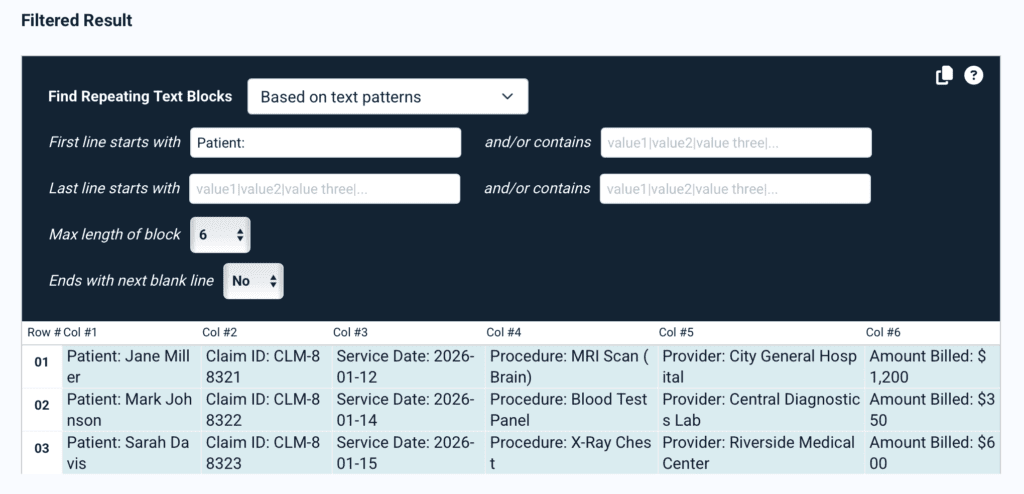
This rule lets you extract repeating data that is spread over several lines. You can configure it to identify text blocks by:
- Defining how many lines one text block has
- Identifying text patterns, e.g., if a line starts with a certain word
- Separating text blocks whenever there are empty lines
To use this feature, select ‘Repeating Text Blocks’ from the advanced features section of the rule editor. Then, on your sample document, draw a selection box over the text blocks you want to extract. You’ll get a filtered result like this:
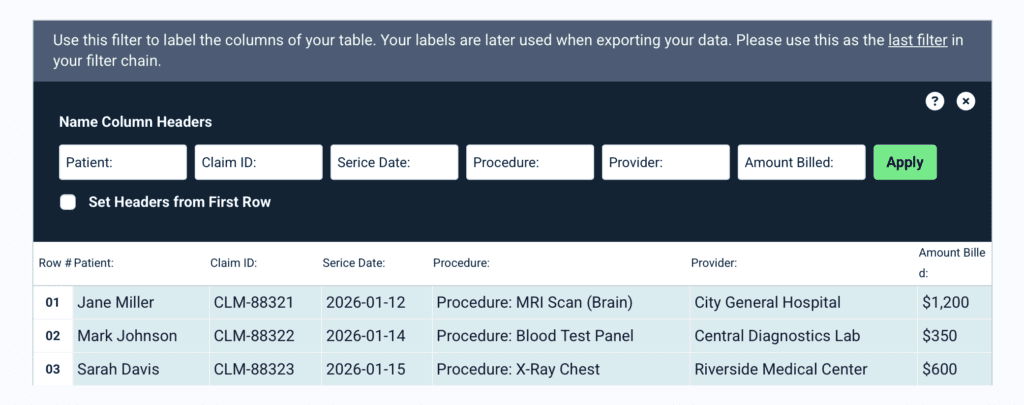
After extracting the text blocks, you can refine the parsing results with additional filters:
Advanced Feature #3: Regular Expression
Next, let’s talk about the Regular Expression advanced feature, or RegEx for short.
This filter allows you to find and extract data points based on your own regular expressions. A regular expression is a pattern used to match and extract specific text formats based on defined rules.
For example, this could be tracking numbers with a specific format, or a number following a specific label.
Essentially, if you know what the data you want to extract looks like but you don’t know where it’s located in a document, this advanced feature is incredibly useful.
Here is an example. Say we want to find all text tokens that consist of two letters followed by a dash symbol and seven digits. The RegEx pattern would look like this:
/[A-Z]{2}-[0-9]{7}/
After uploading a sample document that has tracking numbers in it, we entered this pattern into our filter, and got this result:
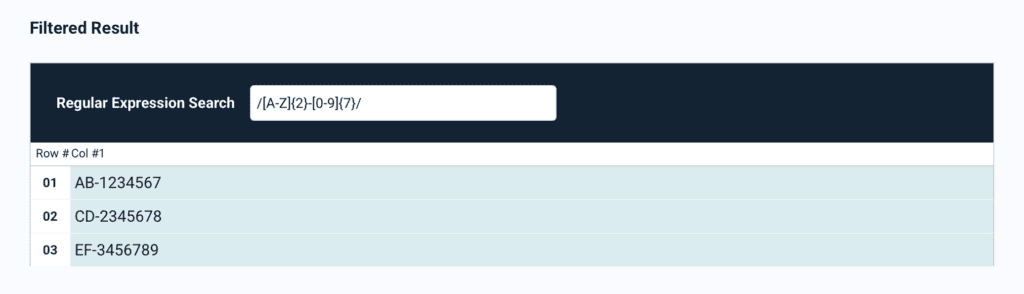
As you can see, all text values that follow this same pattern have been extracted successfully.
To learn more about this advanced feature, please read our Knowledge Base article: “How does the Regular Expression (RegEx) filter work?”.
Advanced Feature #4: Merge Fields
Fourth on this list is the Merge Fields advanced feature.
This feature allows you to combine multiple extracted fields into one output. In other words, you can combine the outputs of multiple parsing rules into a single rule.
This can be useful for consolidating data from different parts of a document or when you want to create a unified output from multiple parsing rules.
Basically, this is how it works:
- Create the parsing rules you want to merge.
- Move your documents to the Parsing Queue to extract data fields based on your rules. You can’t merge fields unless you extract them first.
- Add a new parsing rule and select the ‘Merge Fields’ advanced feature.
- Configure the Merge Fields rule.
- Save your rule.
To give you a quick example, we created three parsing rules to extract three data fields from a mockup document:
- Line items (table)
- Product Code (repeating text value)
- Warranty (repeating text value)
We then created a Merge Fields rule and configured it like this:
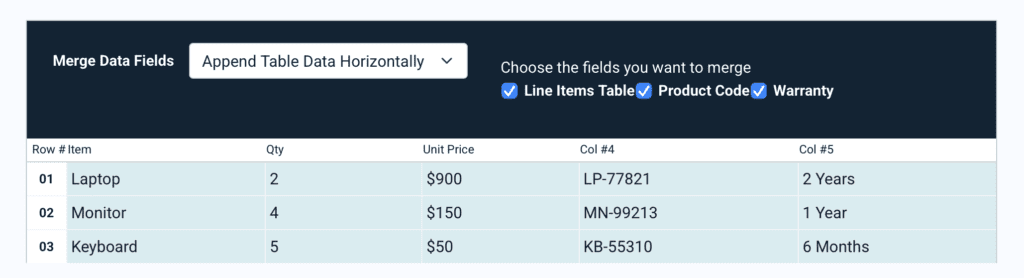
After re-parsing the document, we have successfully consolidated the extracted data from the three parsing rules into a single output:

To learn more about this advanced feature, we recommend reading this article: “How to Use the Merge Fields Parsing Rule”.
Advanced Feature #5: Barcode & QR Code
The last advanced feature in our list is the Barcode & QR Code. As the name suggests, this parsing rule allows you to extract the data contained in barcodes and QR codes located in documents.
Using this feature is extremely easy. Simply upload a sample document, select the QR code or barcode you want to extract, and confirm.
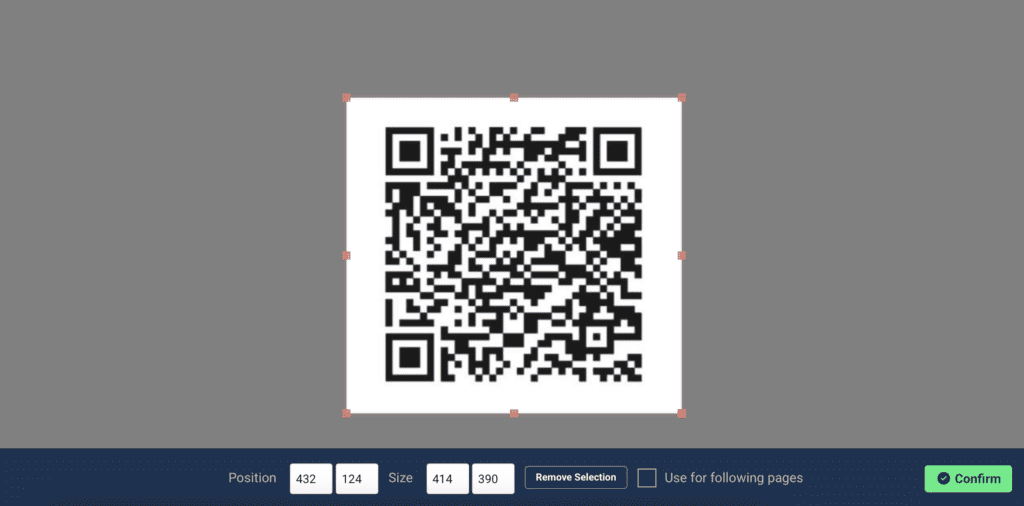
The rule editor then shows you the parsed data. You can add filters to refine the result of the QR code or barcode data extraction if needed.
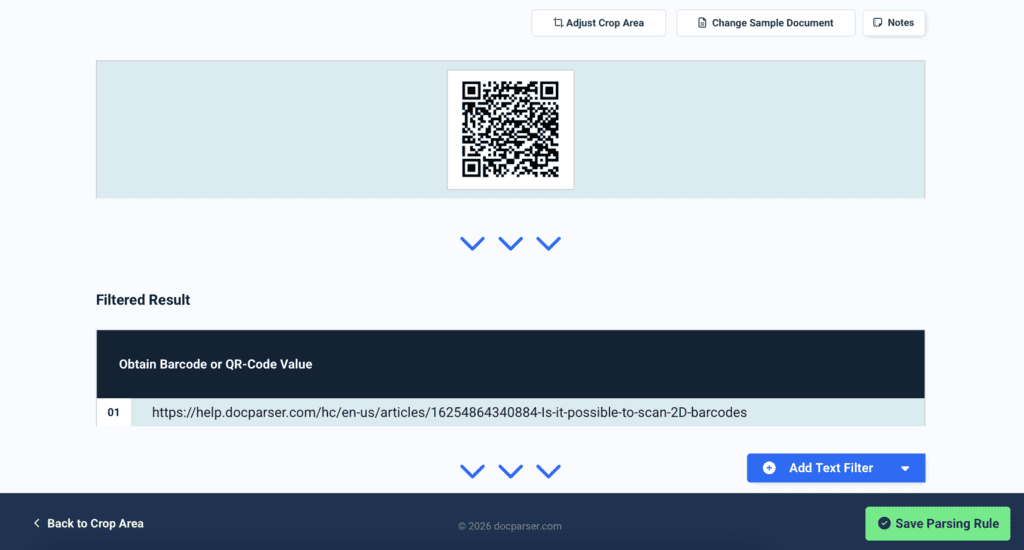
That’s it! As long as the barcodes or QR codes are located in the same area, you’ll be able to extract their contents consistently whenever you upload new documents to your Parser.
Give Those Docparser Advanced Features a Try
At Docparser, we are always listening to users and exploring new features that enhance document parsing — both in terms of accuracy and flexibility. Our goal is to make data extraction not just easier but also smarter, so you can handle even the most complex documents with ease and automate downstream workflows.
Do any of these advanced Docparser features match your data extraction needs? Sign in today and try them out to enhance your parsing results and work with data that is more structured and easier to feed into your systems.
P.S. If you are a Docparser user and would like to request a feature or need help setting up a Parser, don’t hesitate to reach out. Our Customer Happiness team will be happy to assist you.